|
|
| (2 intermediate revisions by 2 users not shown) |
| Line 1: |
Line 1: |
| <h2>IMPORTED REVISION FROM WIKISPACES</h2>
| | Finale can be set up to use custom accidentals, and to pipe MIDI data to a VST such that the playback matches the [[notation]]. |
| This is an imported revision from Wikispaces. The revision metadata is included below for reference:<br>
| |
| : This revision was by author [[User:d.schallert|d.schallert]] and made on <tt>2015-06-15 14:25:53 UTC</tt>.<br>
| |
| : The original revision id was <tt>553928800</tt>.<br>
| |
| : The revision comment was: <tt></tt><br>
| |
| The revision contents are below, presented both in the original Wikispaces Wikitext format, and in HTML exactly as Wikispaces rendered it.<br>
| |
| <h4>Original Wikitext content:</h4>
| |
| <div style="width:100%; max-height:400pt; overflow:auto; background-color:#f8f9fa; border: 1px solid #eaecf0; padding:0em"><pre style="margin:0px;border:none;background:none;word-wrap:break-word;white-space: pre-wrap ! important" class="old-revision-html">Finale can be set up to use custom accidentals, and to pipe MIDI data to a VST such that the playback matches the notation.
| |
|
| |
|
| You will need: | | You will need: |
| * Finale (not sure on earliest supported version, but 2003 and later should work)
| |
| * [[@http://www.nerds.de/en/loopbe1.html|LoopBe1 Internal Midi Port]]
| |
| ** Or similar
| |
| * [[@http://www.hermannseib.com/english/vsthost.htm|VSTHost]]
| |
| ** OPTIONAL: Finale can host VSTs itself
| |
| ** Or similar
| |
| * A VST with microtonal playback and, ideally, support for .kbm files. There are many options:
| |
| ** Pianoteq
| |
| ** ARIA (comes with Finale 2012 and later)
| |
| ** ZynSubAddFX
| |
| ** IVOR
| |
| ** etc.
| |
| * [[@http://www.huygens-fokker.org/scala/|Scala]], or the ability to create .scl and .kbm files, which are just text with fairly simple formats
| |
|
| |
|
| # Install all needed tools
| | <ul><li>Finale (not sure on earliest supported version, but 2003 and later should work)</li><li>[http://www.nerds.de/en/loopbe1.html LoopBe1 Internal Midi Port]<ul><li>Or similar</li></ul></li><li>[http://www.hermannseib.com/english/vsthost.htm VSTHost]<ul><li>OPTIONAL: Finale can host VSTs itself</li><li>Or similar</li></ul></li><li>A VST with microtonal playback and, ideally, support for .kbm files. There are many options:<ul><li>Pianoteq</li><li>ARIA (comes with Finale 2012 and later)</li><li>ZynSubAddFX</li><li>IVOR</li><li>etc.</li></ul></li><li>[http://www.huygens-fokker.org/scala/ Scala], or the ability to create .scl and .kbm files, which are just text with fairly simple formats</li></ul> |
| >
| |
| # Choosing and creating a scale
| |
| > You will probably want to choose a scale size around 6-9 notes for the "white" keys (i.e. the notes without accidentals).
| |
| > From there, all the other pitches in your scale will be represented as accidentals.
| |
| > For more information, read Mike Battaglia's [[@https://beta.groups.yahoo.com/neo/groups/TUNING/conversations/topics/105842|KISS 2.0 Notation ]].
| |
| > This tutorial will use porcupine[7] as the diatonic "white notes" within 22-edo.
| |
| >
| |
| > First, I create 22-edo in Scala:
| |
| > [[image:scala make scale.png]]
| |
| > (Or, you might use the console by typing
| |
| > lineartemp
| |
| > and following the prompts).
| |
| >
| |
| > Then, "Save scale" to some easy-to-navigate-to location.
| |
| > NOTE: Don't forget to enter a description. Some programs don't like empty lines in the .scl format.
| |
| >
| |
| > Next, create a keyboard mapping file. This one has an important variable parameter. If your scale has more than, say, 22 notes, you may want to consider using multiple MIDI channels and multiple instances of the same VST and patch (see below), with each running a different keyboard mapping file. The number of octaves you'll get is 128/scalesize. For example, you'd only get 2.8 octaves of 46edo per VST instance/MIDI channel.
| |
| > Go to Edit > Edit Mapping, and then
| |
| ** Click the button "Get From Scale"
| |
| ** Set the note for 1/1 as desired.
| |
| ** If your tuning has many notes, AND you are using sampled sounds, set the Reference note HIGHER to improve the sound quality of bass instruments, or LOWER to improve the sound quality of treble instruments. May require experimentation for best results.
| |
| ** Click "Fill" on the right side.
| |
| > [[image:kbm scala.png]]
| |
| >
| |
| ** Save the .kbm file by choosing "Save As".
| |
| # Load your VSTs in a host program
| |
| > __**OPTION 1**__
| |
| > I use the free VSTHost.
| |
| > Choose File > New Plugin and navigate to the .dll for your desired VST. Pianoteq by default installs to Program Files/Steinberg/VSTPlugins, for example.
| |
| > Connect it and open it in VSTHost.
| |
| > Get your sound settings working in Devices > Wave if needed Set up MIDI by choosing Devices > MIDI and selecting LoopBe1 Internal.
| |
| > **__OPTION__** __2__
| |
| > Load VSTs in Finale:
| |
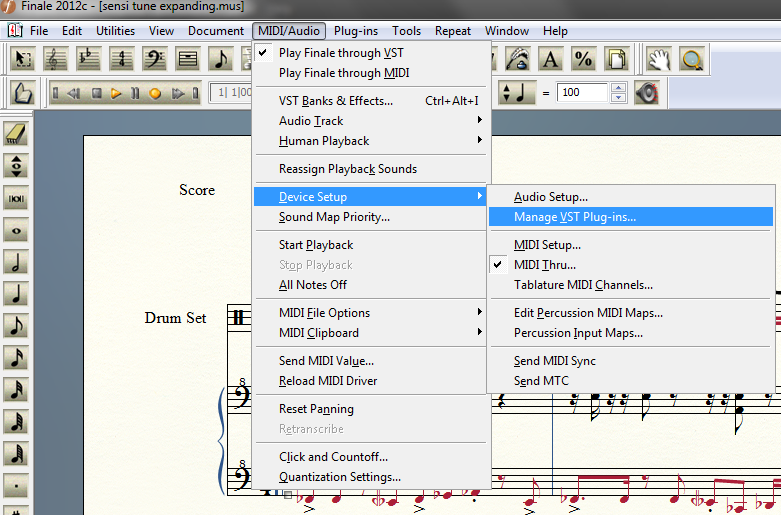
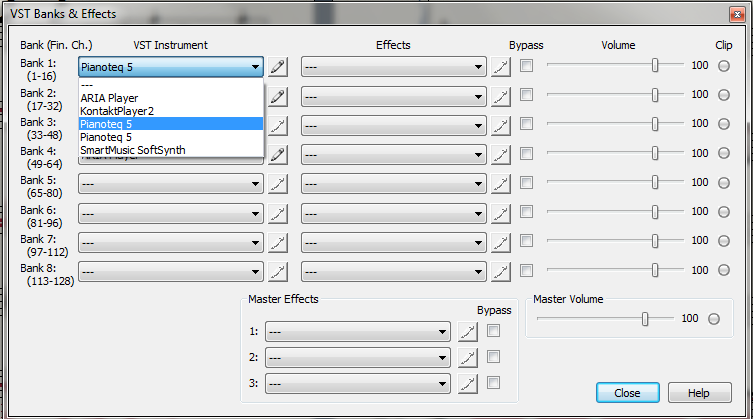
| > Find the folder(s) containing the VSTs and add them to Finale here:
| |
| >
| |
| > [[image:manage vst plugins.png]]
| |
| >
| |
| >
| |
| > [[image:vstbankwindow.png]]
| |
|
| |
|
| | <ol><li>Install all needed tools |
|
| |
|
| | </li><li>Choosing and creating a [[scale]] |
|
| |
|
| | You will probably want to choose a scale size around 6-9 notes for the "white" keys (i.e. the notes without accidentals). |
|
| |
|
| # Verify that the scale works in the desired VST
| | From there, all the other pitches in your scale will be represented as accidentals. |
| >
| |
| >
| |
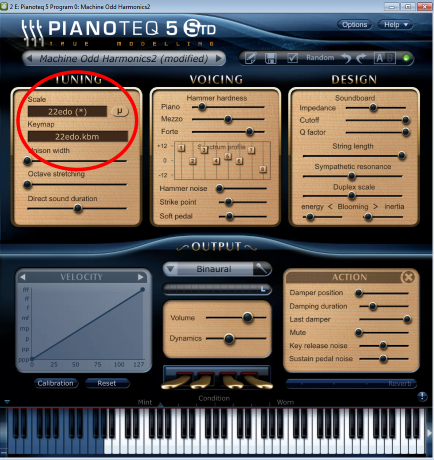
| > Here's where you load the .scl and .kbm in Pianoteq:
| |
| > [[image:pianoteq.png]]
| |
| >
| |
| >
| |
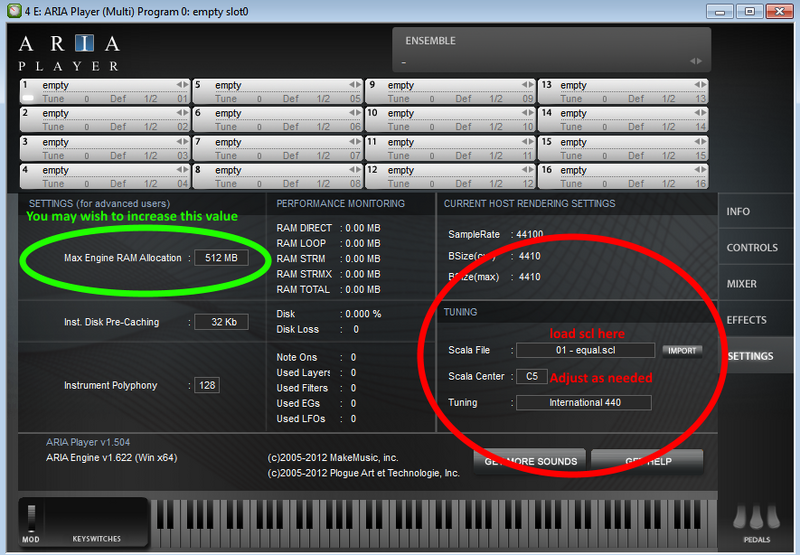
| > In ARIA, you can't load the KBM, but you can pick the key center to minimize sample distortion around the desired range.
| |
| > [[image:aria.png width="800" height="555"]]
| |
| >
| |
| >
| |
| > Now, click a few notes to make sure that the VSTHost output is working properly and that your tuning files loaded properly.
| |
| >
| |
| > You may need to tell each VST instance to operate on a specific MIDI channel, and later match that up with Finale's MIDI output. That should be fairly straightforward.
| |
| >
| |
| >
| |
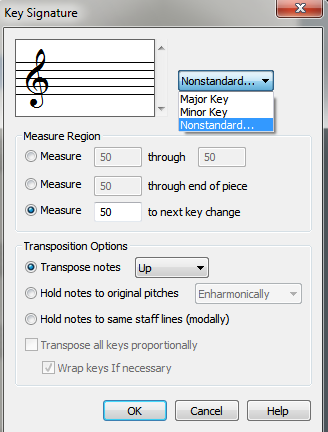
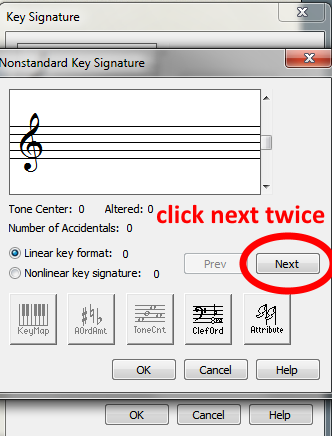
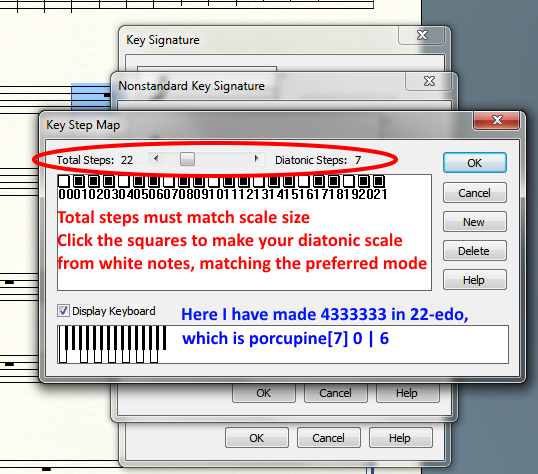
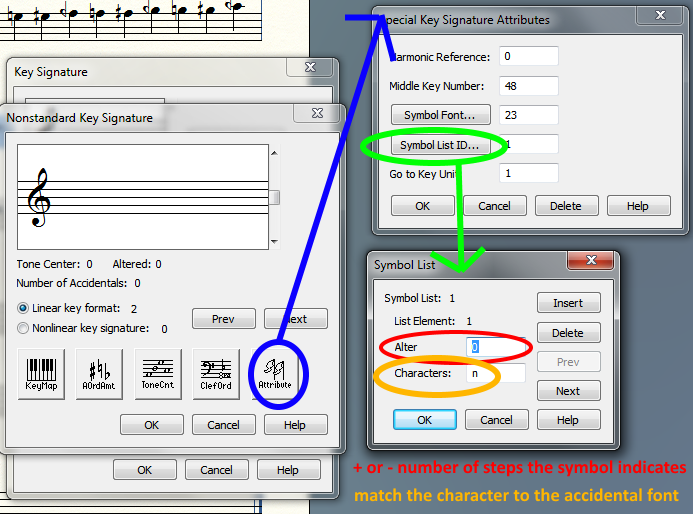
| # Get Finale showing microtonal accidentals and remapping the relationship between staff lines/spaces, accidentals, and MIDI note number output.
| |
| > I used the tutorial here created by Owain Sutton and hosted at Matthew Hindson's blog here: [[@http://hindson.com.au/info/using-microtones-in-finale/|Using Microtones in Finale]]
| |
| >
| |
| > <span style="color: #ff0000; font-size: 130%;">Don't forget to install the custom Accidental font as per Owain's tutorial above.</span>
| |
| >
| |
| > It's fairly straightforward to follow the tutorial, but I will add a few screenshots to help clarify:
| |
| >
| |
| > [[image:finale1.png]]
| |
| > [[image:finale2.png]]
| |
| >
| |
| > [[image:finale3.png]]
| |
| >
| |
| > [[image:finale4.png]]
| |
| >
| |
| # Now just go tell Finale to output MIDI to LoopBe1 and you're all set.
| |
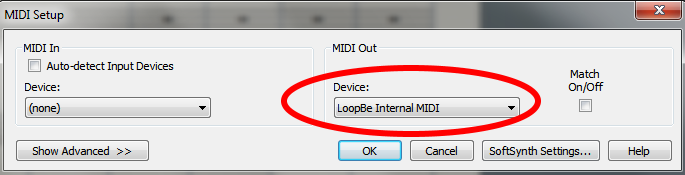
| > Midi/Audio > Device Setup > Midi Setup and then:
| |
| > [[image:finale5.png]]
| |
| >
| |
| # You might have to have a "high" and "low" version of the same instrument in your score, if the tuning is large and you are using a VST that retunes samples, as explained above. Send each one along its own midi channel to a separate VST instance, configured to retune samples around the appropriate center note.
| |
| # If you're really good, you've got a VST that just custom loads samples per MIDI note number, with each sample being hand crafted to verify pitch accuracy. That would be pro-mode for microtonal Finale.
| |
| # If you're going to run a lot of instruments at once, you'll need a bunch of RAM (8+GB) and a bunch of cores (I'm doing fine with 4, but if you have a fast 8 core processor or better, you'll be able to polyphony out the wazoo)
| |
|
| |
|
| That's it! Let me know on XAII if you're having any trouble and I'll try to help...</pre></div>
| | For more information, read [[Mike Battaglia]]'s [https://beta.groups.yahoo.com/neo/groups/TUNING/conversations/topics/105842 KISS 2.0 Notation ]. |
| <h4>Original HTML content:</h4>
| | |
| <div style="width:100%; max-height:400pt; overflow:auto; background-color:#f8f9fa; border: 1px solid #eaecf0; padding:0em"><pre style="margin:0px;border:none;background:none;word-wrap:break-word;width:200%;white-space: pre-wrap ! important" class="old-revision-html"><html><head><title>Finale Microtonal Accidentals and Playback</title></head><body>Finale can be set up to use custom accidentals, and to pipe MIDI data to a VST such that the playback matches the notation.<br />
| | This tutorial will use [[porcupine]][7] as the diatonic "white notes" within [[22-edo]]. |
| <br />
| | |
| You will need:<br />
| | First, I create 22-edo in [[Scala]]: |
| <ul><li>Finale (not sure on earliest supported version, but 2003 and later should work)</li><li><a class="wiki_link_ext" href="http://www.nerds.de/en/loopbe1.html" rel="nofollow" target="_blank">LoopBe1 Internal Midi Port</a><ul><li>Or similar</li></ul></li><li><a class="wiki_link_ext" href="http://www.hermannseib.com/english/vsthost.htm" rel="nofollow" target="_blank">VSTHost</a><ul><li>OPTIONAL: Finale can host VSTs itself</li><li>Or similar</li></ul></li><li>A VST with microtonal playback and, ideally, support for .kbm files. There are many options:<ul><li>Pianoteq</li><li>ARIA (comes with Finale 2012 and later)</li><li>ZynSubAddFX</li><li>IVOR</li><li>etc.</li></ul></li><li><a class="wiki_link_ext" href="http://www.huygens-fokker.org/scala/" rel="nofollow" target="_blank">Scala</a>, or the ability to create .scl and .kbm files, which are just text with fairly simple formats</li></ul><br />
| | |
| <ol><li>Install all needed tools<br />
| | [[File:scala_make_scale.png|alt=scala make scale.png|scala make scale.png]] |
| <br />
| | |
| </li><li>Choosing and creating a scale<br />
| | (Or, you might use the console by typing |
| You will probably want to choose a scale size around 6-9 notes for the &quot;white&quot; keys (i.e. the notes without accidentals).<br />
| | |
| From there, all the other pitches in your scale will be represented as accidentals.<br />
| | lineartemp |
| For more information, read Mike Battaglia's <a class="wiki_link_ext" href="https://beta.groups.yahoo.com/neo/groups/TUNING/conversations/topics/105842" rel="nofollow" target="_blank">KISS 2.0 Notation </a>.<br />
| | |
| This tutorial will use porcupine[7] as the diatonic &quot;white notes&quot; within 22-edo.<br />
| | and following the prompts). |
| <br />
| | |
| First, I create 22-edo in Scala:<br />
| | Then, "Save scale" to some easy-to-navigate-to location. |
| <!-- ws:start:WikiTextLocalImageRule:157:&lt;img src=&quot;/file/view/scala%20make%20scale.png/537738898/scala%20make%20scale.png&quot; alt=&quot;&quot; title=&quot;&quot; /&gt; --><img src="/file/view/scala%20make%20scale.png/537738898/scala%20make%20scale.png" alt="scala make scale.png" title="scala make scale.png" /><!-- ws:end:WikiTextLocalImageRule:157 --><br />
| | |
| (Or, you might use the console by typing<br />
| | NOTE: Don't forget to enter a description. Some programs don't like empty lines in the .scl format. |
| lineartemp<br />
| | |
| and following the prompts).<br />
| | Next, create a keyboard mapping file. This one has an important variable parameter. If your scale has more than, say, 22 notes, you may want to consider using multiple MIDI channels and multiple instances of the same VST and patch (see below), with each running a different keyboard mapping file. The number of octaves you'll get is 128/scalesize. For example, you'd only get 2.8 octaves of [[46edo]] per VST instance/MIDI channel. |
| <br />
| | |
| Then, &quot;Save scale&quot; to some easy-to-navigate-to location.<br />
| | Go to Edit > Edit Mapping, and then<ul><li>Click the button "Get From Scale"</li><li>Set the note for 1/1 as desired.</li><li>If your tuning has many notes, AND you are using sampled sounds, set the Reference note HIGHER to improve the sound quality of bass instruments, or LOWER to improve the sound quality of treble instruments. May require experimentation for best results.</li><li>Click "Fill" on the right side.</li></ul>[[File:kbm_scala.png|alt=kbm scala.png|kbm scala.png]] |
| NOTE: Don't forget to enter a description. Some programs don't like empty lines in the .scl format.<br />
| | |
| <br />
| | <ul><li>Save the .kbm file by choosing "Save As".</li></ul></li><li>Load your VSTs in a host program |
| Next, create a keyboard mapping file. This one has an important variable parameter. If your scale has more than, say, 22 notes, you may want to consider using multiple MIDI channels and multiple instances of the same VST and patch (see below), with each running a different keyboard mapping file. The number of octaves you'll get is 128/scalesize. For example, you'd only get 2.8 octaves of 46edo per VST instance/MIDI channel.<br />
| | |
| Go to Edit &gt; Edit Mapping, and then<ul><li>Click the button &quot;Get From Scale&quot;</li><li>Set the note for 1/1 as desired.</li><li>If your tuning has many notes, AND you are using sampled sounds, set the Reference note HIGHER to improve the sound quality of bass instruments, or LOWER to improve the sound quality of treble instruments. May require experimentation for best results.</li><li>Click &quot;Fill&quot; on the right side.</li></ul><!-- ws:start:WikiTextLocalImageRule:158:&lt;img src=&quot;/file/view/kbm%20scala.png/537739196/kbm%20scala.png&quot; alt=&quot;&quot; title=&quot;&quot; /&gt; --><img src="/file/view/kbm%20scala.png/537739196/kbm%20scala.png" alt="kbm scala.png" title="kbm scala.png" /><!-- ws:end:WikiTextLocalImageRule:158 --><br />
| | <u>'''OPTION 1'''</u> |
| <br />
| | |
| <ul><li>Save the .kbm file by choosing &quot;Save As&quot;.</li></ul></li><li>Load your VSTs in a host program<br />
| | I use the free VSTHost. |
| <u><strong>OPTION 1</strong></u><br />
| | |
| I use the free VSTHost.<br />
| | Choose File > New Plugin and navigate to the .dll for your desired VST. Pianoteq by default installs to Program Files/Steinberg/VSTPlugins, for example. |
| Choose File &gt; New Plugin and navigate to the .dll for your desired VST. Pianoteq by default installs to Program Files/Steinberg/VSTPlugins, for example.<br />
| | |
| Connect it and open it in VSTHost.<br />
| | Connect it and open it in VSTHost. |
| Get your sound settings working in Devices &gt; Wave if needed Set up MIDI by choosing Devices &gt; MIDI and selecting LoopBe1 Internal.<br />
| | |
| <strong><u>OPTION</u></strong> <u>2</u><br />
| | Get your sound settings working in Devices > Wave if needed Set up MIDI by choosing Devices > MIDI and selecting LoopBe1 Internal. |
| Load VSTs in Finale:<br />
| | |
| Find the folder(s) containing the VSTs and add them to Finale here:<br />
| | '''<u>OPTION</u>''' <u>2</u> |
| <br />
| | |
| <!-- ws:start:WikiTextLocalImageRule:159:&lt;img src=&quot;/file/view/manage%20vst%20plugins.png/553928644/manage%20vst%20plugins.png&quot; alt=&quot;&quot; title=&quot;&quot; /&gt; --><img src="/file/view/manage%20vst%20plugins.png/553928644/manage%20vst%20plugins.png" alt="manage vst plugins.png" title="manage vst plugins.png" /><!-- ws:end:WikiTextLocalImageRule:159 --><br />
| | Load VSTs in Finale: |
| <br />
| | |
| <br />
| | Find the folder(s) containing the VSTs and add them to Finale here: |
| <!-- ws:start:WikiTextLocalImageRule:160:&lt;img src=&quot;/file/view/vstbankwindow.png/553928788/vstbankwindow.png&quot; alt=&quot;&quot; title=&quot;&quot; /&gt; --><img src="/file/view/vstbankwindow.png/553928788/vstbankwindow.png" alt="vstbankwindow.png" title="vstbankwindow.png" /><!-- ws:end:WikiTextLocalImageRule:160 --></li></ol><br />
| | |
| <br />
| | [[File:manage_vst_plugins.png|alt=manage vst plugins.png|manage vst plugins.png]] |
| <br />
| | |
| <br />
| | [[File:vstbankwindow.png|alt=vstbankwindow.png|vstbankwindow.png]]</li></ol> |
| <ol><li>Verify that the scale works in the desired VST<br />
| | |
| <br />
| | <ol><li>Verify that the scale works in the desired VST |
| <br />
| | |
| Here's where you load the .scl and .kbm in Pianoteq:<br />
| | Here's where you load the .scl and .kbm in Pianoteq: |
| <!-- ws:start:WikiTextLocalImageRule:161:&lt;img src=&quot;/file/view/pianoteq.png/537739922/pianoteq.png&quot; alt=&quot;&quot; title=&quot;&quot; /&gt; --><img src="/file/view/pianoteq.png/537739922/pianoteq.png" alt="pianoteq.png" title="pianoteq.png" /><!-- ws:end:WikiTextLocalImageRule:161 --><br />
| | |
| <br />
| | [[File:pianoteq.png|alt=pianoteq.png|pianoteq.png]] |
| <br />
| | |
| In ARIA, you can't load the KBM, but you can pick the key center to minimize sample distortion around the desired range.<br />
| | In ARIA, you can't load the KBM, but you can pick the key center to minimize sample distortion around the desired range. |
| <!-- ws:start:WikiTextLocalImageRule:162:&lt;img src=&quot;/file/view/aria.png/537740190/800x555/aria.png&quot; alt=&quot;&quot; title=&quot;&quot; style=&quot;height: 555px; width: 800px;&quot; /&gt; --><img src="/file/view/aria.png/537740190/800x555/aria.png" alt="aria.png" title="aria.png" style="height: 555px; width: 800px;" /><!-- ws:end:WikiTextLocalImageRule:162 --><br />
| | |
| <br />
| | [[File:aria.png|alt=aria.png|800x555px|aria.png]] |
| <br />
| | |
| Now, click a few notes to make sure that the VSTHost output is working properly and that your tuning files loaded properly.<br />
| | Now, click a few notes to make sure that the VSTHost output is working properly and that your tuning files loaded properly. |
| <br />
| | |
| You may need to tell each VST instance to operate on a specific MIDI channel, and later match that up with Finale's MIDI output. That should be fairly straightforward.<br />
| | You may need to tell each VST instance to operate on a specific MIDI channel, and later match that up with Finale's MIDI output. That should be fairly straightforward. |
| <br />
| | |
| <br />
| | </li><li>Get Finale showing microtonal accidentals and remapping the relationship between staff lines/spaces, accidentals, and MIDI note number output. |
| </li><li>Get Finale showing microtonal accidentals and remapping the relationship between staff lines/spaces, accidentals, and MIDI note number output.<br />
| | |
| I used the tutorial here created by Owain Sutton and hosted at Matthew Hindson's blog here: <a class="wiki_link_ext" href="http://hindson.com.au/info/using-microtones-in-finale/" rel="nofollow" target="_blank">Using Microtones in Finale</a><br />
| | I used the tutorial here created by [[Owain Sutton]] and hosted at [[Matthew Hindson]]'s blog here: [http://hindson.com.au/info/using-microtones-in-finale/ Using Microtones in Finale] |
| <br />
| | |
| <span style="color: #ff0000; font-size: 130%;">Don't forget to install the custom Accidental font as per Owain's tutorial above.</span><br />
| | <span style="color: #ff0000; font-size: 130%;">Don't forget to install the custom Accidental font as per Owain's tutorial above.</span> |
| <br />
| | |
| It's fairly straightforward to follow the tutorial, but I will add a few screenshots to help clarify:<br />
| | It's fairly straightforward to follow the tutorial, but I will add a few screenshots to help clarify: |
| <br />
| | |
| <!-- ws:start:WikiTextLocalImageRule:163:&lt;img src=&quot;/file/view/finale1.png/537741144/finale1.png&quot; alt=&quot;&quot; title=&quot;&quot; /&gt; --><img src="/file/view/finale1.png/537741144/finale1.png" alt="finale1.png" title="finale1.png" /><!-- ws:end:WikiTextLocalImageRule:163 --><br />
| | [[File:finale1.png|alt=finale1.png|finale1.png]] |
| <!-- ws:start:WikiTextLocalImageRule:164:&lt;img src=&quot;/file/view/finale2.png/537741176/finale2.png&quot; alt=&quot;&quot; title=&quot;&quot; /&gt; --><img src="/file/view/finale2.png/537741176/finale2.png" alt="finale2.png" title="finale2.png" /><!-- ws:end:WikiTextLocalImageRule:164 --><br />
| | |
| <br />
| | [[File:finale2.png|alt=finale2.png|finale2.png]] |
| <!-- ws:start:WikiTextLocalImageRule:165:&lt;img src=&quot;/file/view/finale3.png/537742694/finale3.png&quot; alt=&quot;&quot; title=&quot;&quot; /&gt; --><img src="/file/view/finale3.png/537742694/finale3.png" alt="finale3.png" title="finale3.png" /><!-- ws:end:WikiTextLocalImageRule:165 --><br />
| | |
| <br />
| | [[File:finale3.png|alt=finale3.png|finale3.png]] |
| <!-- ws:start:WikiTextLocalImageRule:166:&lt;img src=&quot;/file/view/finale4.png/537741224/finale4.png&quot; alt=&quot;&quot; title=&quot;&quot; /&gt; --><img src="/file/view/finale4.png/537741224/finale4.png" alt="finale4.png" title="finale4.png" /><!-- ws:end:WikiTextLocalImageRule:166 --><br />
| | |
| <br />
| | [[File:finale4.png|alt=finale4.png|finale4.png]] |
| </li><li>Now just go tell Finale to output MIDI to LoopBe1 and you're all set.<br />
| | |
| Midi/Audio &gt; Device Setup &gt; Midi Setup and then:<br />
| | </li><li>Now just go tell Finale to output MIDI to LoopBe1 and you're all set. |
| <!-- ws:start:WikiTextLocalImageRule:167:&lt;img src=&quot;/file/view/finale5.png/537741624/finale5.png&quot; alt=&quot;&quot; title=&quot;&quot; /&gt; --><img src="/file/view/finale5.png/537741624/finale5.png" alt="finale5.png" title="finale5.png" /><!-- ws:end:WikiTextLocalImageRule:167 --><br />
| | |
| <br />
| | Midi/Audio > Device Setup > Midi Setup and then: |
| </li><li>You might have to have a &quot;high&quot; and &quot;low&quot; version of the same instrument in your score, if the tuning is large and you are using a VST that retunes samples, as explained above. Send each one along its own midi channel to a separate VST instance, configured to retune samples around the appropriate center note.</li><li>If you're really good, you've got a VST that just custom loads samples per MIDI note number, with each sample being hand crafted to verify pitch accuracy. That would be pro-mode for microtonal Finale.</li><li>If you're going to run a lot of instruments at once, you'll need a bunch of RAM (8+GB) and a bunch of cores (I'm doing fine with 4, but if you have a fast 8 core processor or better, you'll be able to polyphony out the wazoo)</li></ol><br />
| | |
| That's it! Let me know on XAII if you're having any trouble and I'll try to help...</body></html></pre></div>
| | [[File:finale5.png|alt=finale5.png|finale5.png]] |
| | |
| | </li><li>You might have to have a "high" and "low" version of the same instrument in your score, if the tuning is large and you are using a VST that retunes samples, as explained above. Send each one along its own midi channel to a separate VST instance, configured to retune samples around the appropriate center note.</li><li>If you're really good, you've got a VST that just custom loads samples per MIDI note number, with each sample being hand crafted to verify pitch accuracy. That would be pro-mode for microtonal Finale.</li><li>If you're going to run a lot of instruments at once, you'll need a bunch of RAM (8+GB) and a bunch of cores (I'm doing fine with 4, but if you have a fast 8 core processor or better, you'll be able to polyphony out the wazoo)</li></ol> |
| | |
| | That's it! Let me know on XAII if you're having any trouble and I'll try to help... |
| | |
| | [[Category:Guides]] |
| | [[Category:Notation]] |
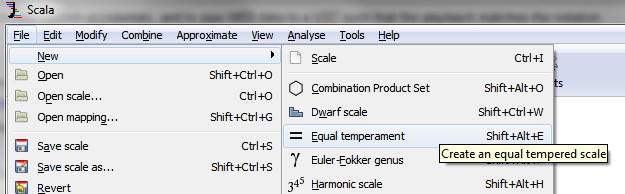 (Or, you might use the console by typing
lineartemp
and following the prompts).
Then, "Save scale" to some easy-to-navigate-to location.
NOTE: Don't forget to enter a description. Some programs don't like empty lines in the .scl format.
Next, create a keyboard mapping file. This one has an important variable parameter. If your scale has more than, say, 22 notes, you may want to consider using multiple MIDI channels and multiple instances of the same VST and patch (see below), with each running a different keyboard mapping file. The number of octaves you'll get is 128/scalesize. For example, you'd only get 2.8 octaves of 46edo per VST instance/MIDI channel.
Go to Edit > Edit Mapping, and then
(Or, you might use the console by typing
lineartemp
and following the prompts).
Then, "Save scale" to some easy-to-navigate-to location.
NOTE: Don't forget to enter a description. Some programs don't like empty lines in the .scl format.
Next, create a keyboard mapping file. This one has an important variable parameter. If your scale has more than, say, 22 notes, you may want to consider using multiple MIDI channels and multiple instances of the same VST and patch (see below), with each running a different keyboard mapping file. The number of octaves you'll get is 128/scalesize. For example, you'd only get 2.8 octaves of 46edo per VST instance/MIDI channel.
Go to Edit > Edit Mapping, and then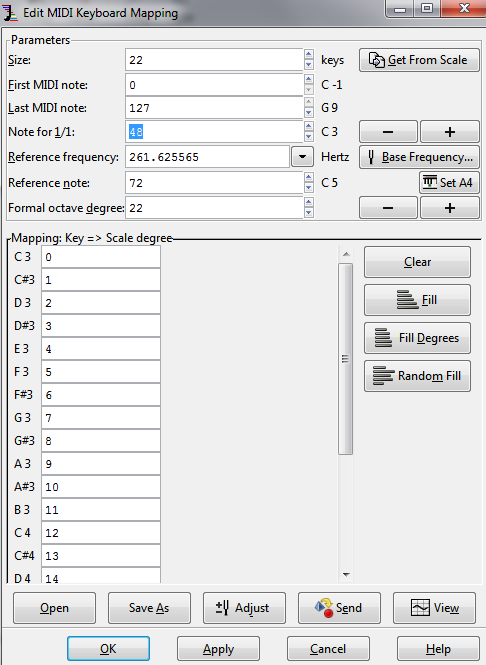


 In ARIA, you can't load the KBM, but you can pick the key center to minimize sample distortion around the desired range.
 Now, click a few notes to make sure that the VSTHost output is working properly and that your tuning files loaded properly.
You may need to tell each VST instance to operate on a specific MIDI channel, and later match that up with Finale's MIDI output. That should be fairly straightforward.
Now, click a few notes to make sure that the VSTHost output is working properly and that your tuning files loaded properly.
You may need to tell each VST instance to operate on a specific MIDI channel, and later match that up with Finale's MIDI output. That should be fairly straightforward.